> ## Documentation Index
> Fetch the complete documentation index at: https://codemodcom.mintlify.site/llms.txt
> Use this file to discover all available pages before exploring further.
# Insights
export const CodemodInsightsDemo = () => {
return
;
};
In large codebases, tracking migrations, old/new APIs, security anti-patterns, and trends can be incredibly useful. Engineers and engineering leaders in progressive software teams can stay on top of these changes using **Codemod Insights**.
With Codemod Insights, you can generate customized dashboards and widgets that provide helpful insights about your code's posture. This way, you can make informed decisions and track code changes that scale over time.
## Using Codemod Insights
Dashboards help you keep your insights' widgets organized.
For example, you can create a dashboard called `i18n migration` to organize all widgets related to your i18n migration.
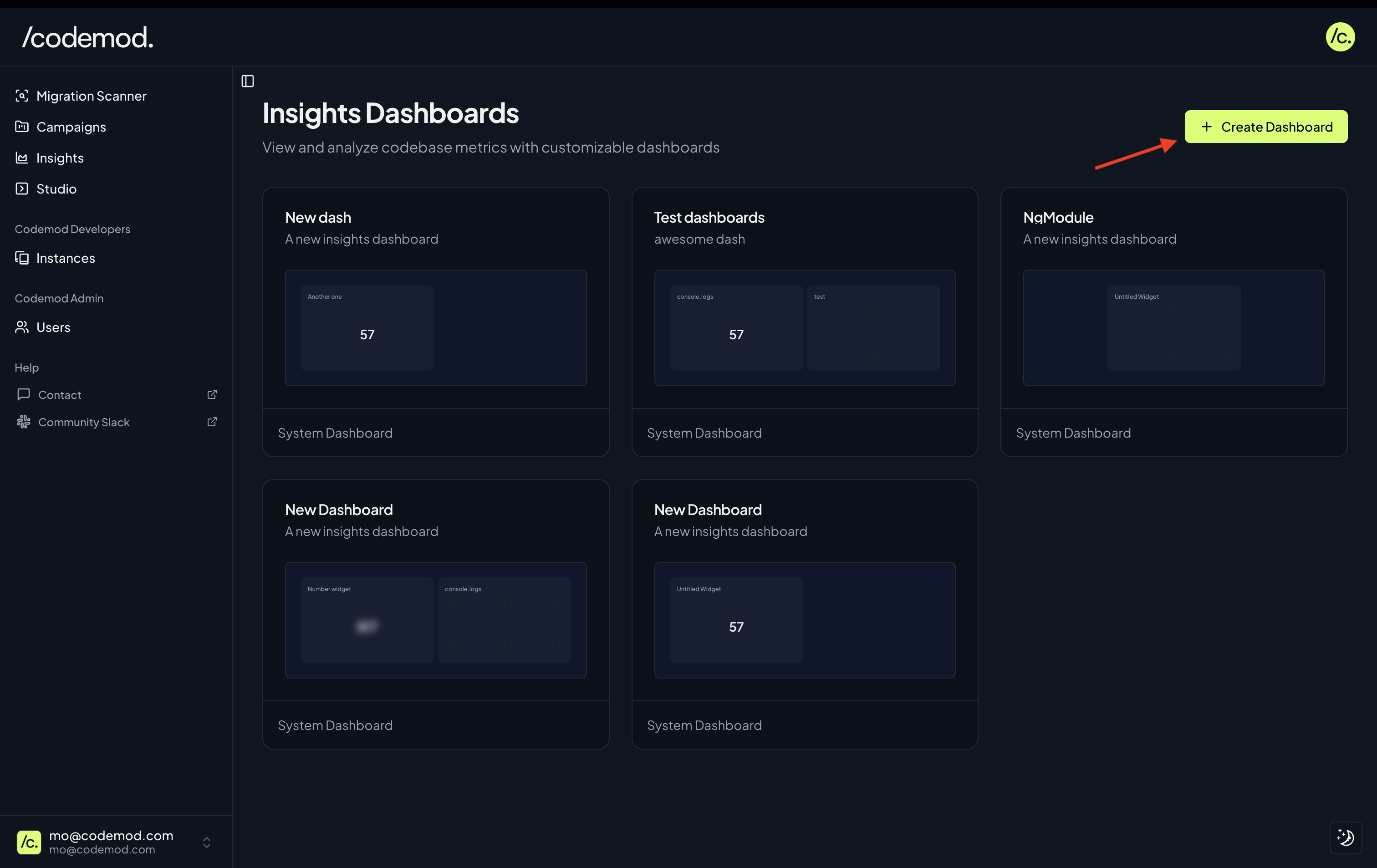
To create a new dashboard, go to `Insights -> Create Dashboard`.
 Once you're in your new dashboard, you can create a new widget.
Widgets help you get useful insights about a variety of patterns in your codebase.
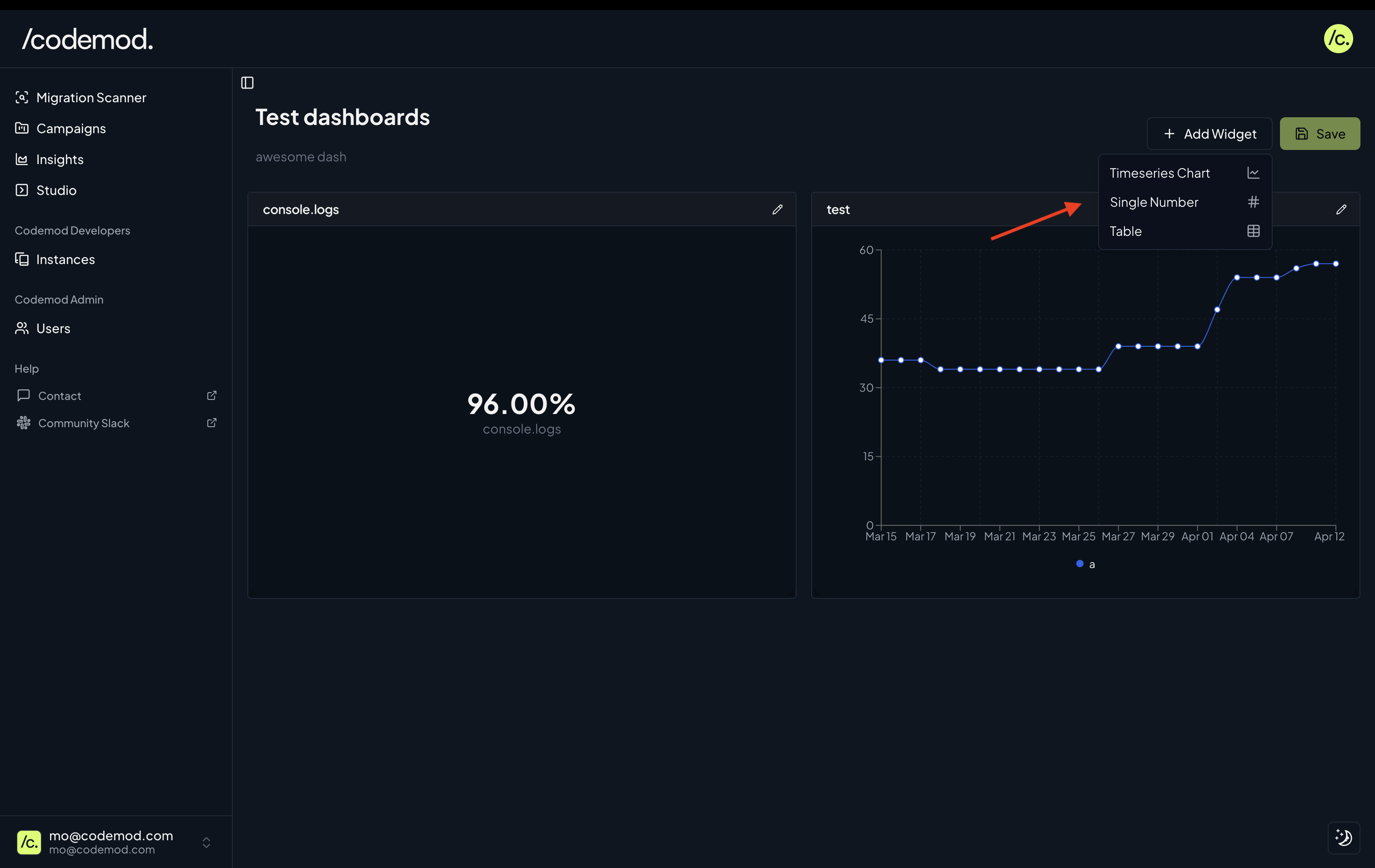
Currently, you can create `Timeseries chart`, `Single number`, or `Table` widgets.
Once you're in your new dashboard, you can create a new widget.
Widgets help you get useful insights about a variety of patterns in your codebase.
Currently, you can create `Timeseries chart`, `Single number`, or `Table` widgets.
 Widgets allow you to track and visualize insights by running queries over your codebase. Each query represents an [`ast-grep` YAML rule](https://ast-grep.github.io/reference/yaml.html) that is applied to your repository.
Start by specifying a code pattern you would like to track and visualize. You can generate ast-grep rules with the help of AI [using Codemod Studio](/codemod-studio#using-codemod-ai).
For each quer, you can specify:
* `ast-grep` rule ([generate rules easily with codemod studio](/codemod-studio#using-codemod-ai))
* match type, can be occurrence counts or file counts
* target repository
* query label
* group options
* date/commit hash (for Single number and Table widgets)
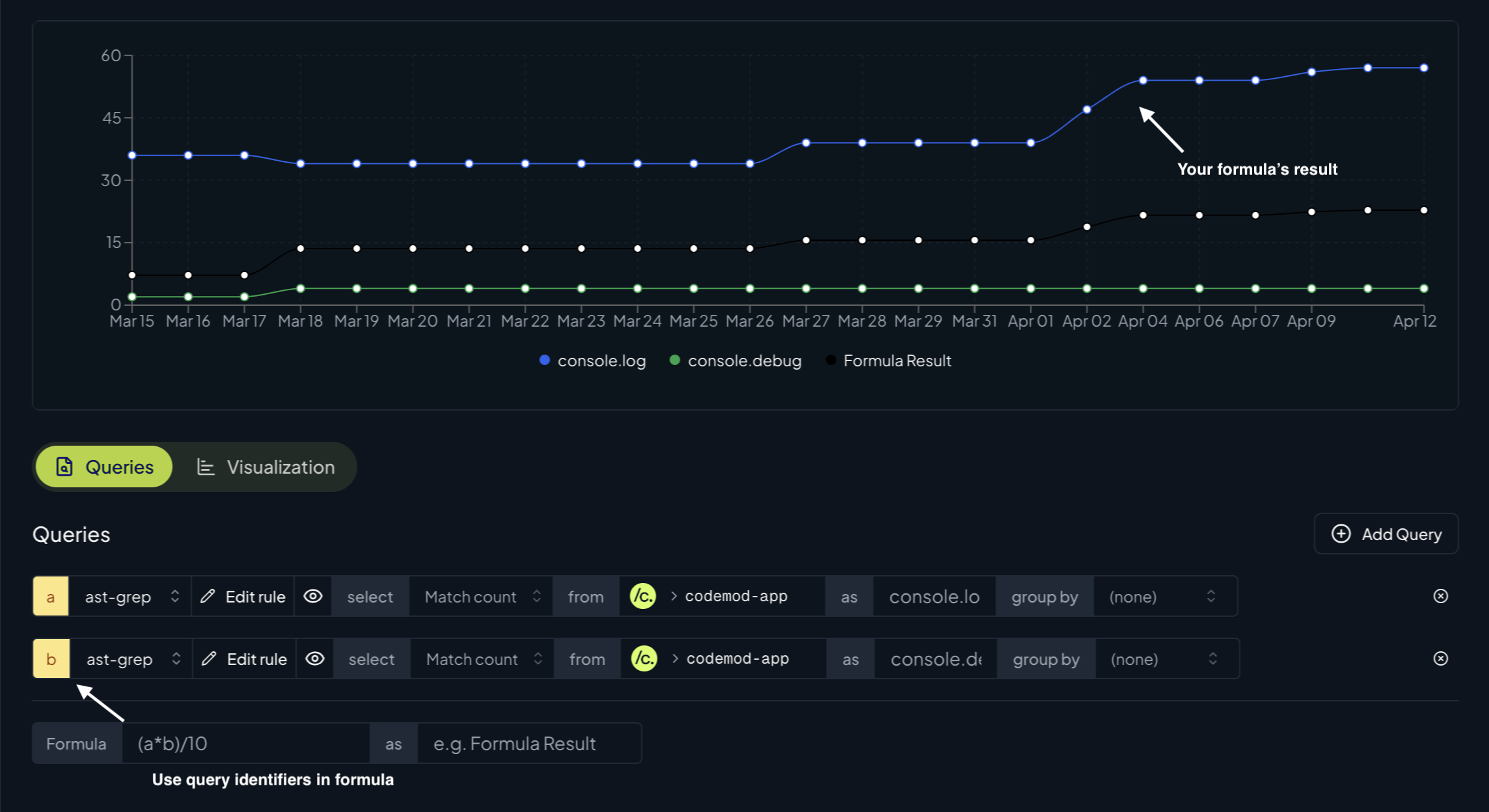
When configuring widgets, you can add multiple queries to extend the information a widget provides. Additionally, you can aggregate the results of multiple queries by specifying a formula. To refer to a query's value in a formula, use the query's name (alphabetical order index).
Widgets allow you to track and visualize insights by running queries over your codebase. Each query represents an [`ast-grep` YAML rule](https://ast-grep.github.io/reference/yaml.html) that is applied to your repository.
Start by specifying a code pattern you would like to track and visualize. You can generate ast-grep rules with the help of AI [using Codemod Studio](/codemod-studio#using-codemod-ai).
For each quer, you can specify:
* `ast-grep` rule ([generate rules easily with codemod studio](/codemod-studio#using-codemod-ai))
* match type, can be occurrence counts or file counts
* target repository
* query label
* group options
* date/commit hash (for Single number and Table widgets)
When configuring widgets, you can add multiple queries to extend the information a widget provides. Additionally, you can aggregate the results of multiple queries by specifying a formula. To refer to a query's value in a formula, use the query's name (alphabetical order index).