> ## Documentation Index
> Fetch the complete documentation index at: https://codemodcom.mintlify.site/llms.txt
> Use this file to discover all available pages before exploring further.
# GitHub Integration
Connect Codemod to your GitHub repositories to enable automated code transformations across your codebase.
## Why Integrate GitHub?
Integrating Codemod with GitHub allows you to apply codemods directly to your repositories and create pull requests with automated code changes.
## Setting Up the Integration
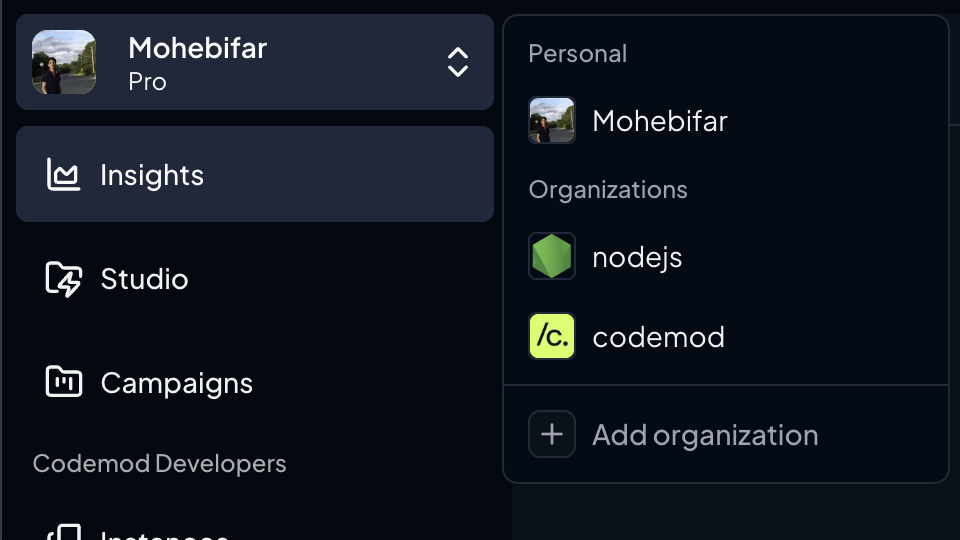
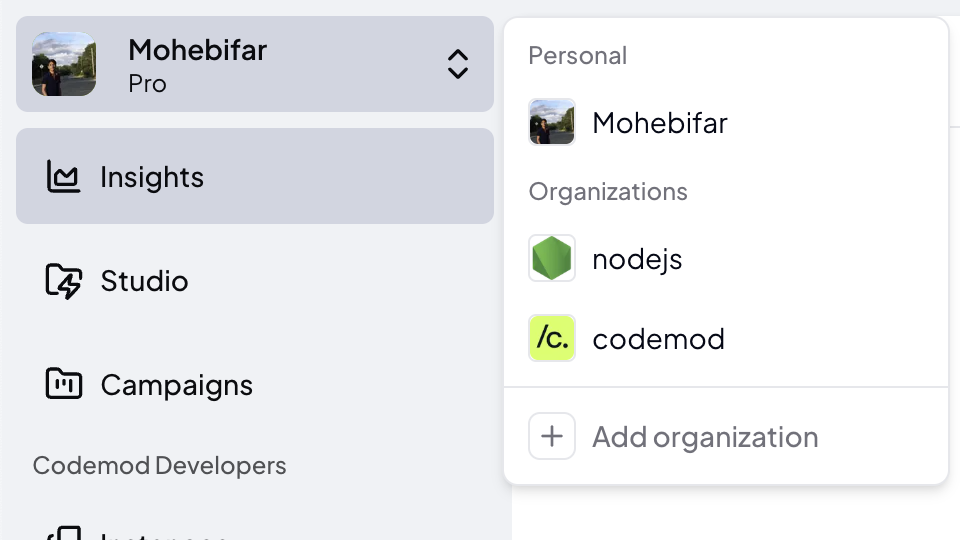
### Step 1: Navigate to "add organization"
Sign in to [Codemod](https://app.codemod.com). Click on team switcher and click on "Add Organization"
 ### Step 2: Connect GitHub
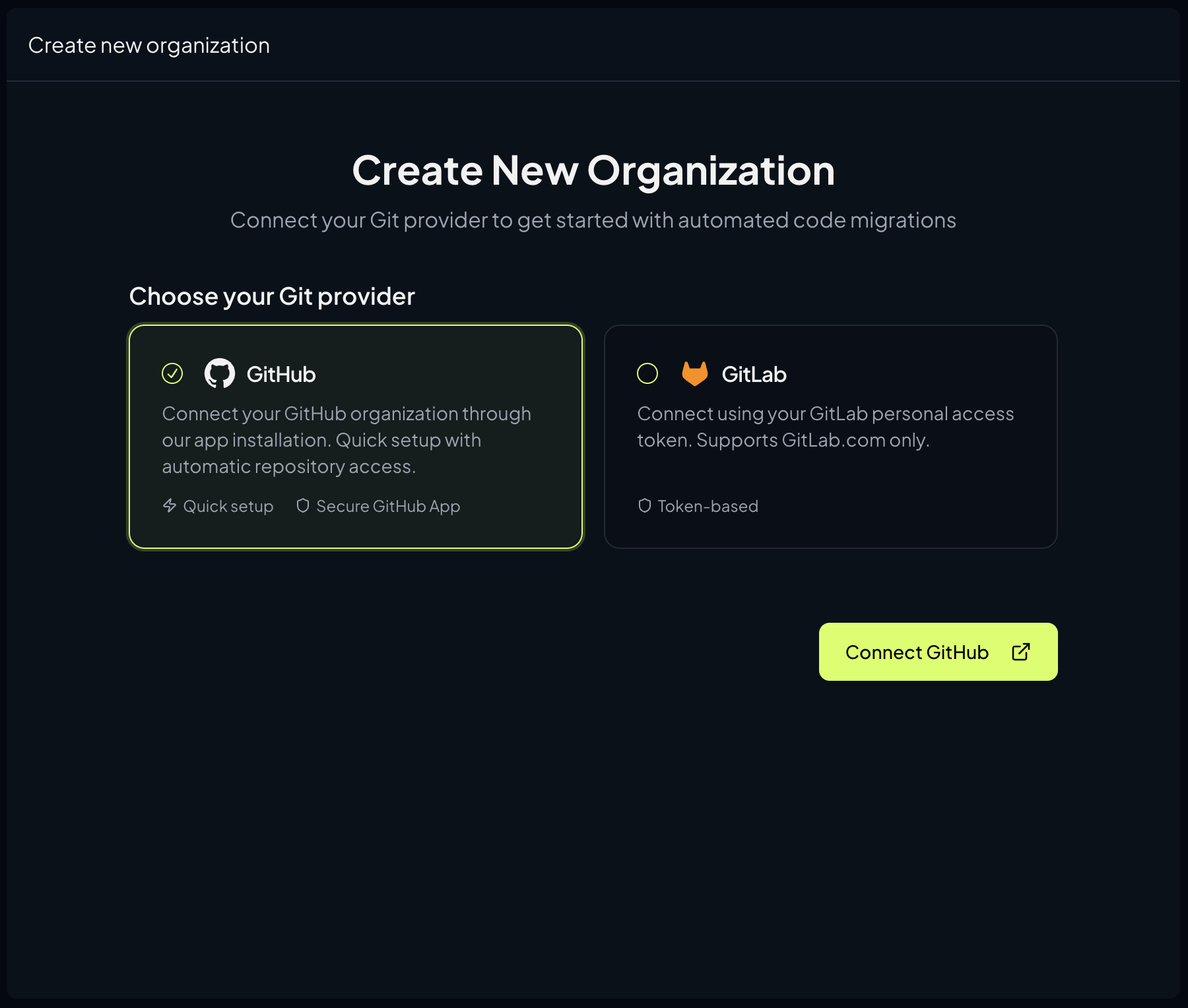
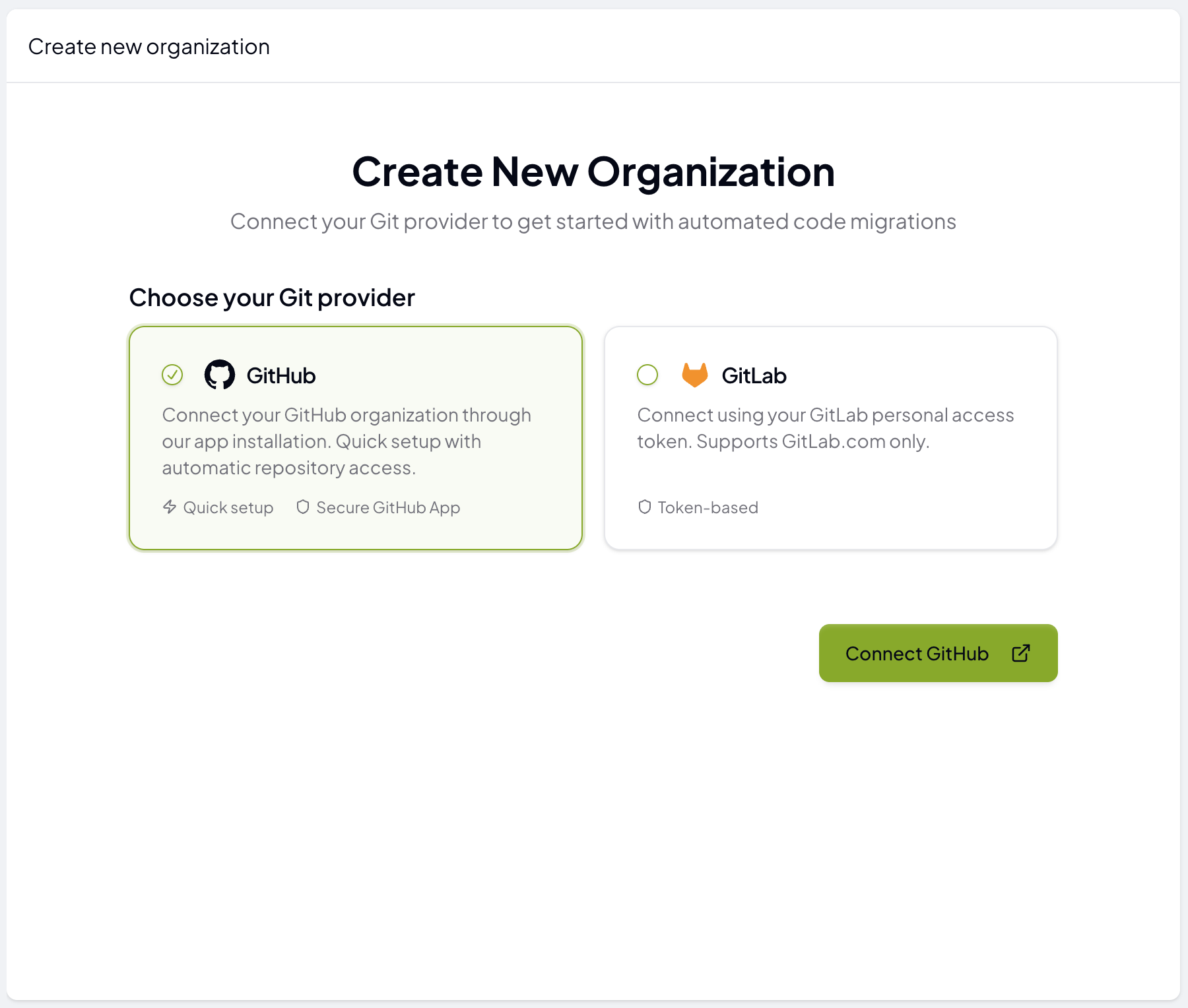
Click the **"Connect GitHub"** button to begin the integration process.
### Step 2: Connect GitHub
Click the **"Connect GitHub"** button to begin the integration process.
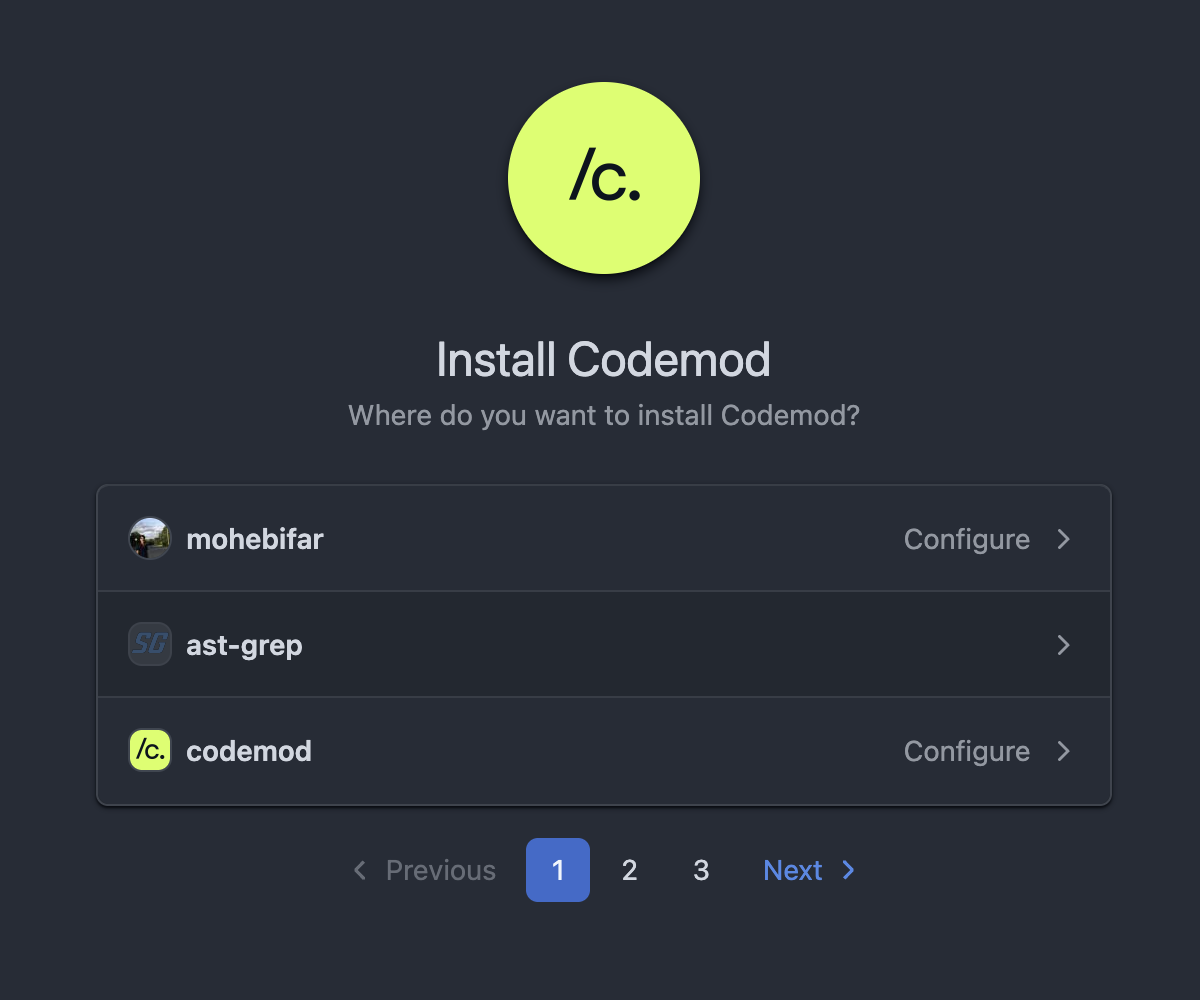
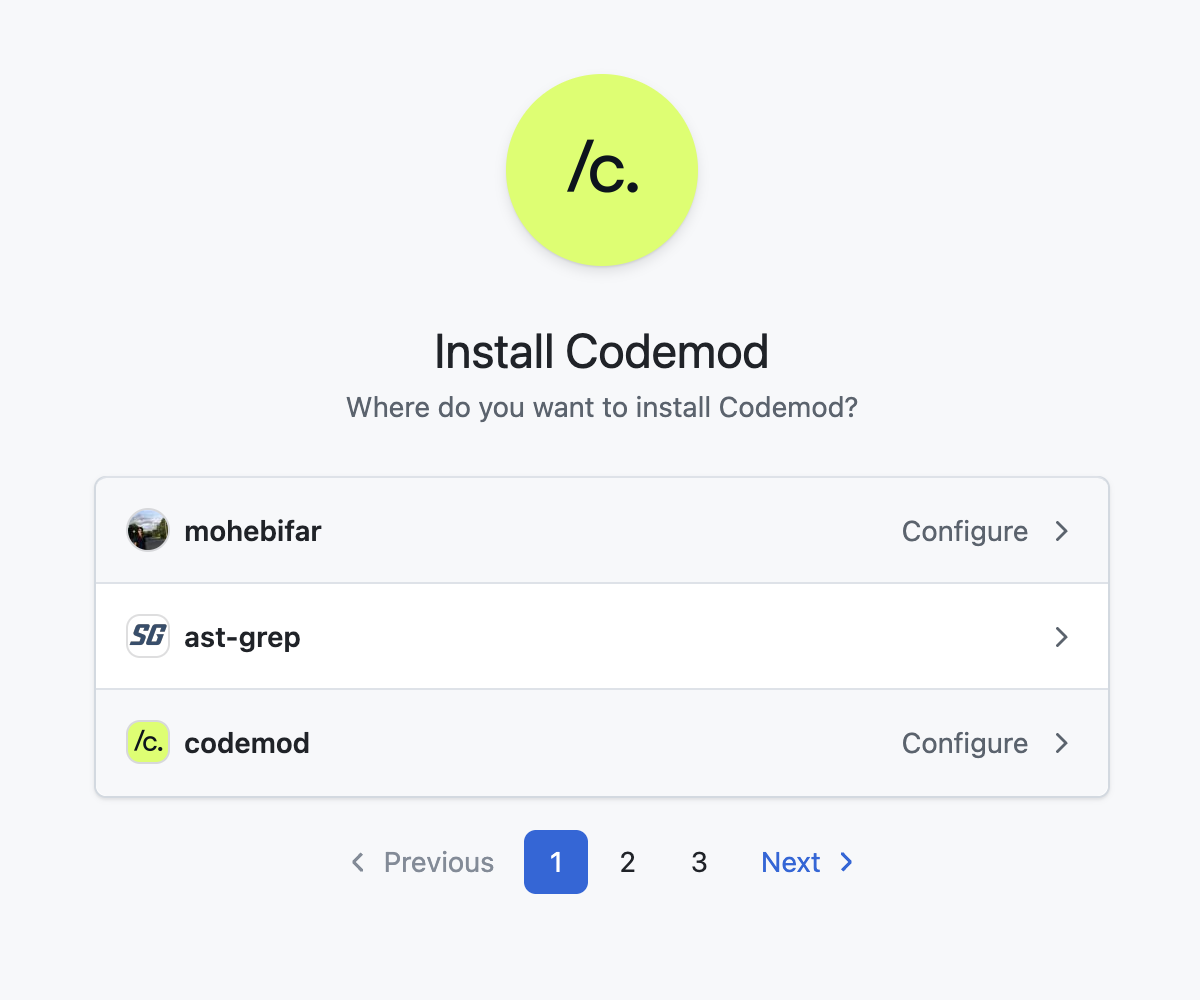
 ### Step 3: Install the GitHub App
You'll be redirected to GitHub where you can:
1. Select the **GitHub account** (personal or organization) where you want to install the Codemod app
2. Choose which **repositories** to grant access to (all repositories or select specific ones)
3. Review the permissions requested by the app
After approving the installation on GitHub, you'll be redirected back to Codemod where you can confirm the integration is active.
### Step 3: Install the GitHub App
You'll be redirected to GitHub where you can:
1. Select the **GitHub account** (personal or organization) where you want to install the Codemod app
2. Choose which **repositories** to grant access to (all repositories or select specific ones)
3. Review the permissions requested by the app
After approving the installation on GitHub, you'll be redirected back to Codemod where you can confirm the integration is active.
 ## Using the GitHub Integration
Once connected, you can:
* Select connected repositories when running codemods
* Automatically create pull requests with your code transformations
* Configure which repositories to target for specific codemods
## Managing Permissions
You can modify repository access at any time:
1. Go to your GitHub account settings
2. Navigate to **Applications** → **Installed GitHub Apps**
3. Find **Codemod** and click **Configure**
4. Update repository access as needed
### Required Permissions
Codemod requires the following GitHub permissions:
**Read** access to:
* Repository metadata
* Repository code
* Commit statuses
**Read and Write** access to:
* Code (to create branches and commits)
* Pull requests (to create and update PRs)
These permissions allow Codemod to read your code, create branches with transformations, and open pull requests for review.
## Security Considerations
* We recommend enabling branch protections on your main branches to ensure changes are reviewed before merging
* Codemod can only access repositories you explicitly grant during the installation process
* You can revoke access at any time through your GitHub settings
* All code transformations are submitted as pull requests for your review
## Managing the Integration
To disconnect or modify the GitHub integration:
1. Go to Codemod **Settings** → **Integrations**
2. Click **Configure** or **Disconnect** next to the GitHub integration
***
**Need help?** If you encounter any issues setting up the GitHub integration, please contact our support team or visit our documentation for troubleshooting steps.
## Using the GitHub Integration
Once connected, you can:
* Select connected repositories when running codemods
* Automatically create pull requests with your code transformations
* Configure which repositories to target for specific codemods
## Managing Permissions
You can modify repository access at any time:
1. Go to your GitHub account settings
2. Navigate to **Applications** → **Installed GitHub Apps**
3. Find **Codemod** and click **Configure**
4. Update repository access as needed
### Required Permissions
Codemod requires the following GitHub permissions:
**Read** access to:
* Repository metadata
* Repository code
* Commit statuses
**Read and Write** access to:
* Code (to create branches and commits)
* Pull requests (to create and update PRs)
These permissions allow Codemod to read your code, create branches with transformations, and open pull requests for review.
## Security Considerations
* We recommend enabling branch protections on your main branches to ensure changes are reviewed before merging
* Codemod can only access repositories you explicitly grant during the installation process
* You can revoke access at any time through your GitHub settings
* All code transformations are submitted as pull requests for your review
## Managing the Integration
To disconnect or modify the GitHub integration:
1. Go to Codemod **Settings** → **Integrations**
2. Click **Configure** or **Disconnect** next to the GitHub integration
***
**Need help?** If you encounter any issues setting up the GitHub integration, please contact our support team or visit our documentation for troubleshooting steps.