> ## Documentation Index
> Fetch the complete documentation index at: https://codemodcom.mintlify.site/llms.txt
> Use this file to discover all available pages before exploring further.
# GitLab Integration
Connect Codemod to your GitLab repositories to enable automated code transformations across your codebase.
## Why Integrate GitLab?
Integrating Codemod with GitLab allows you to apply codemods directly to your repositories and create merge requests with automated code changes. Our GitLab integration supports GitLab.com and uses secure token-based authentication.
## Setting Up the Integration
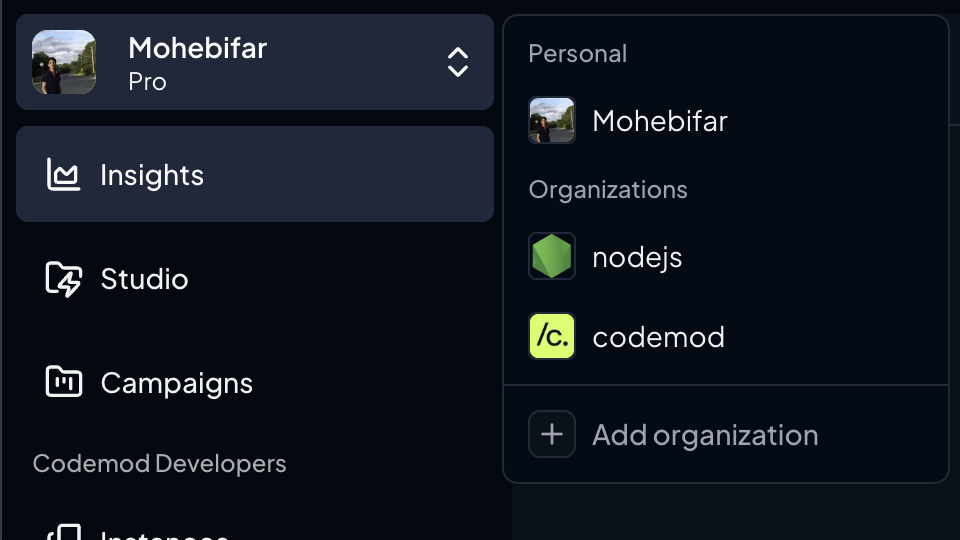
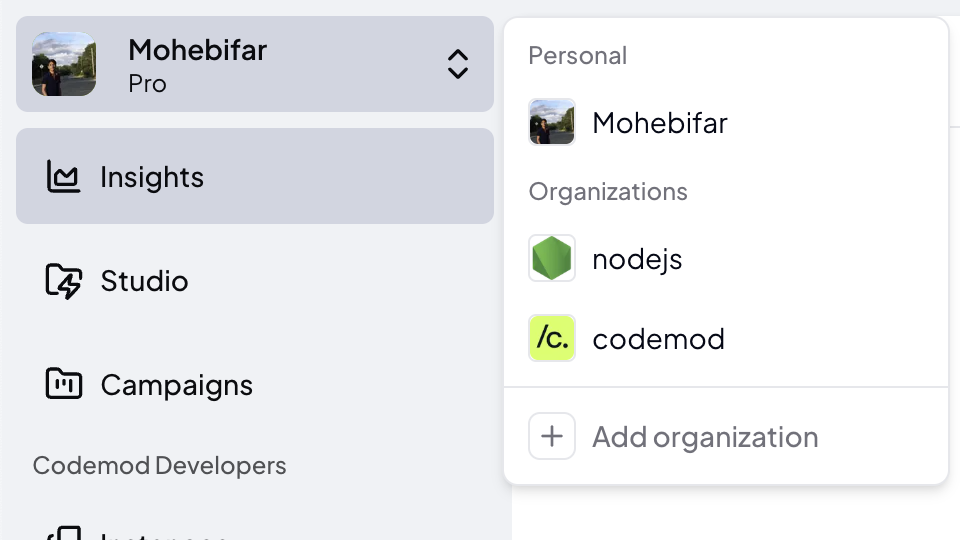
### Step 1: Navigate to "add organization"
Sign in to [Codemod](https://app.codemod.com). Click on team switcher and click on "Add Organization"
 ### Step 2: Select GitLab Provider
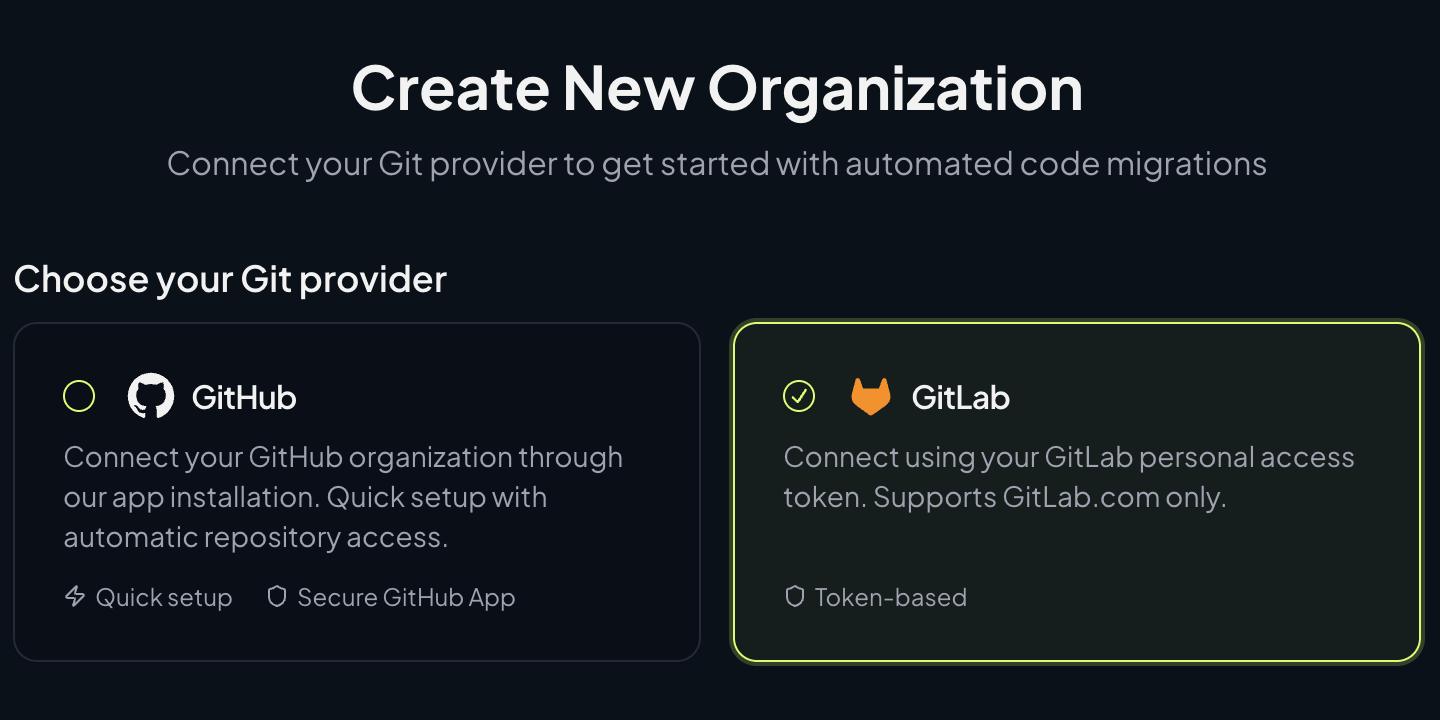
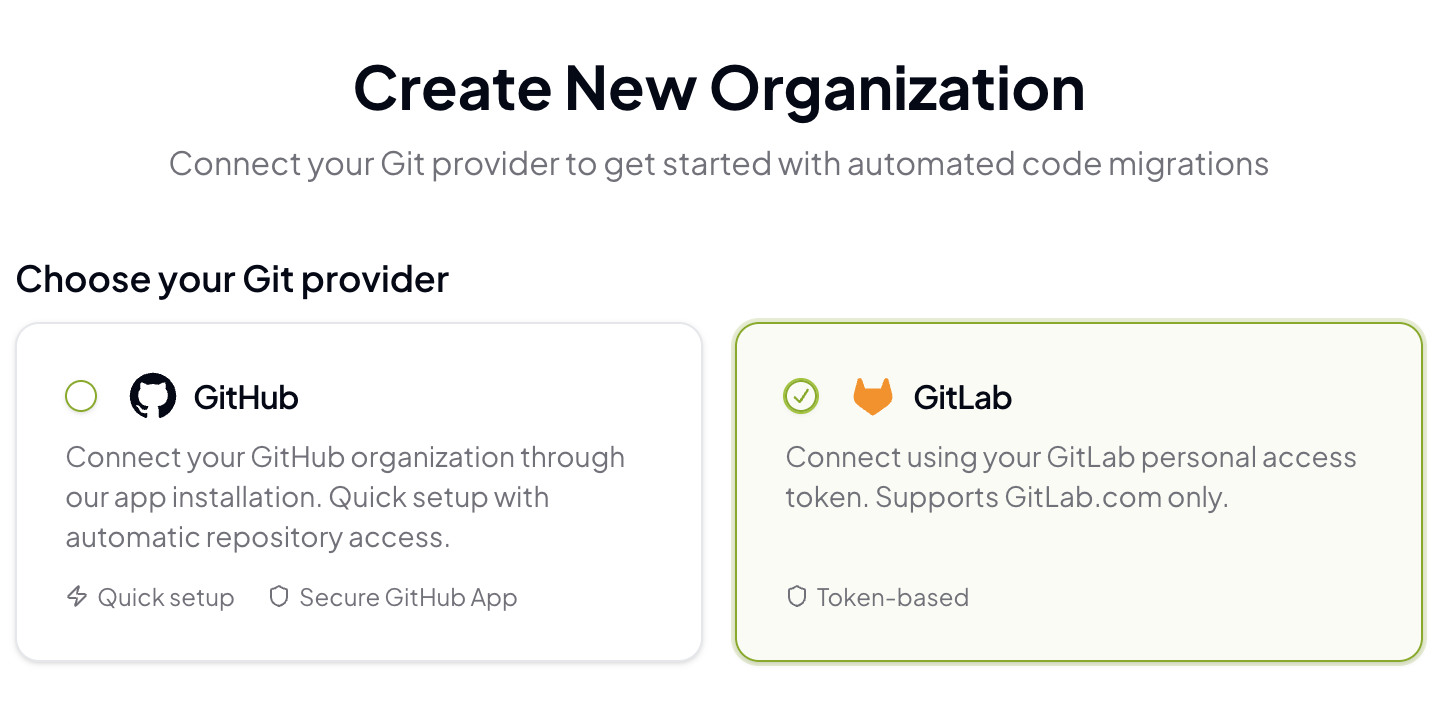
Choose **GitLab** as your Git provider from the available options.
### Step 2: Select GitLab Provider
Choose **GitLab** as your Git provider from the available options.
 ### Step 3: Create a GitLab Access Token
Before proceeding, you'll need to create a GitLab Group Access Token. Refer to [this guide](https://docs.gitlab.com/user/group/settings/group_access_tokens/) to create a group access token. Follow these steps:
#### Creating a Group Access Token (Recommended)
Go to GitLab.com and navigate to your group that contains the repositories you want to integrate.
In the left sidebar, go to **Settings** → **Access Tokens**
1. Click **"Add new token"**
2. Enter a name (e.g., "Codemod Integration")
3. Set an expiration date (optional but recommended)
4. Select the required scopes (see below)
5. Click **"Create group access token"**
Copy the generated token immediately. You won't be able to see it again!
Make sure to copy the token right away. GitLab will only show it once for security reasons.
#### Alternative: Personal Access Token
If you don't have group admin permissions, you can create a [personal access token](https://gitlab.com/-/profile/personal_access_tokens) instead. However, group access tokens are recommended as they're not tied to individual users.
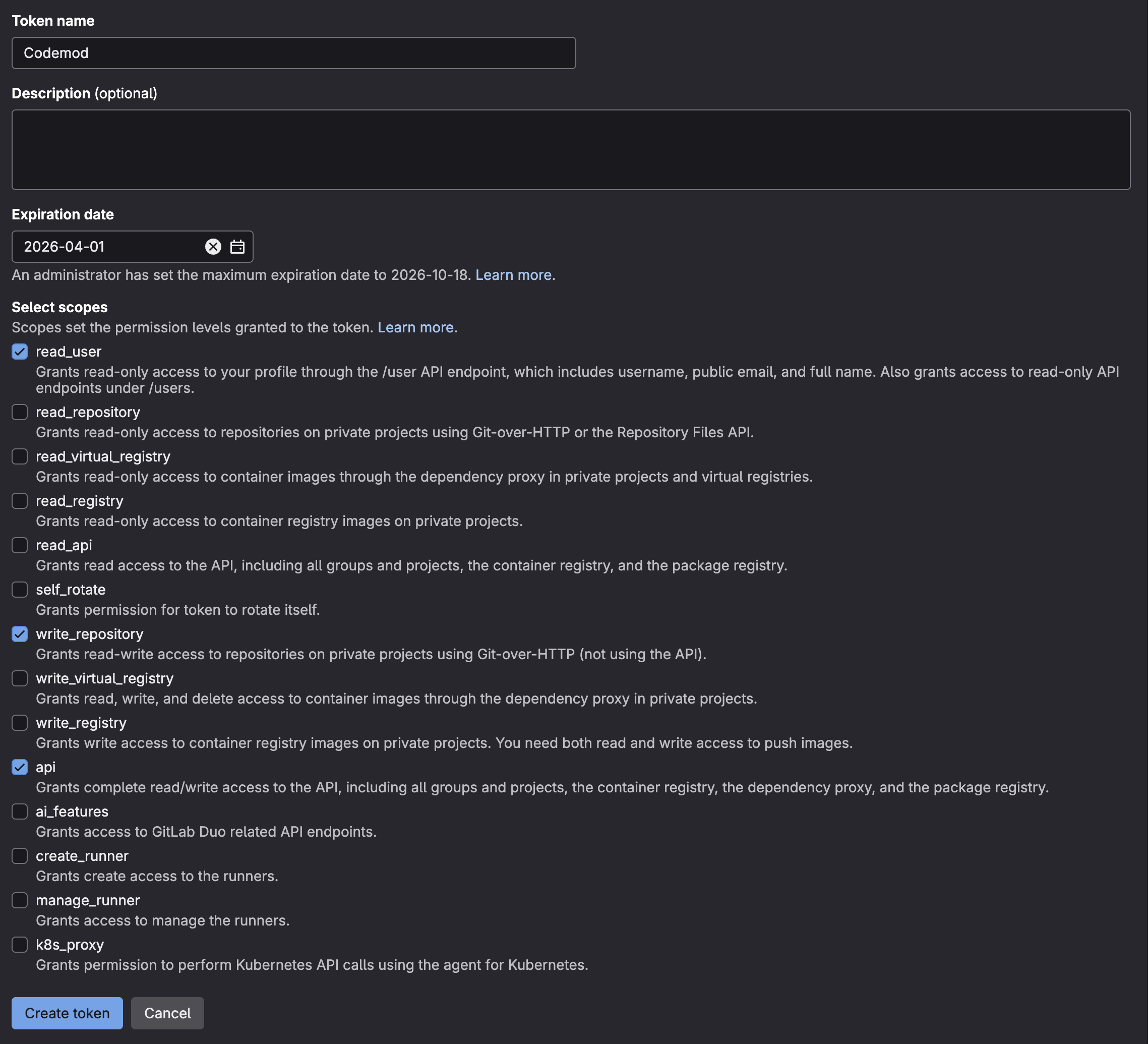
### Step 4: Configure Required Token Scopes
Your GitLab token must have the following scopes:
Allows reading user information and group memberships
Enables creating branches, commits, and merge requests
Provides full API access for repository operations
### Step 3: Create a GitLab Access Token
Before proceeding, you'll need to create a GitLab Group Access Token. Refer to [this guide](https://docs.gitlab.com/user/group/settings/group_access_tokens/) to create a group access token. Follow these steps:
#### Creating a Group Access Token (Recommended)
Go to GitLab.com and navigate to your group that contains the repositories you want to integrate.
In the left sidebar, go to **Settings** → **Access Tokens**
1. Click **"Add new token"**
2. Enter a name (e.g., "Codemod Integration")
3. Set an expiration date (optional but recommended)
4. Select the required scopes (see below)
5. Click **"Create group access token"**
Copy the generated token immediately. You won't be able to see it again!
Make sure to copy the token right away. GitLab will only show it once for security reasons.
#### Alternative: Personal Access Token
If you don't have group admin permissions, you can create a [personal access token](https://gitlab.com/-/profile/personal_access_tokens) instead. However, group access tokens are recommended as they're not tied to individual users.
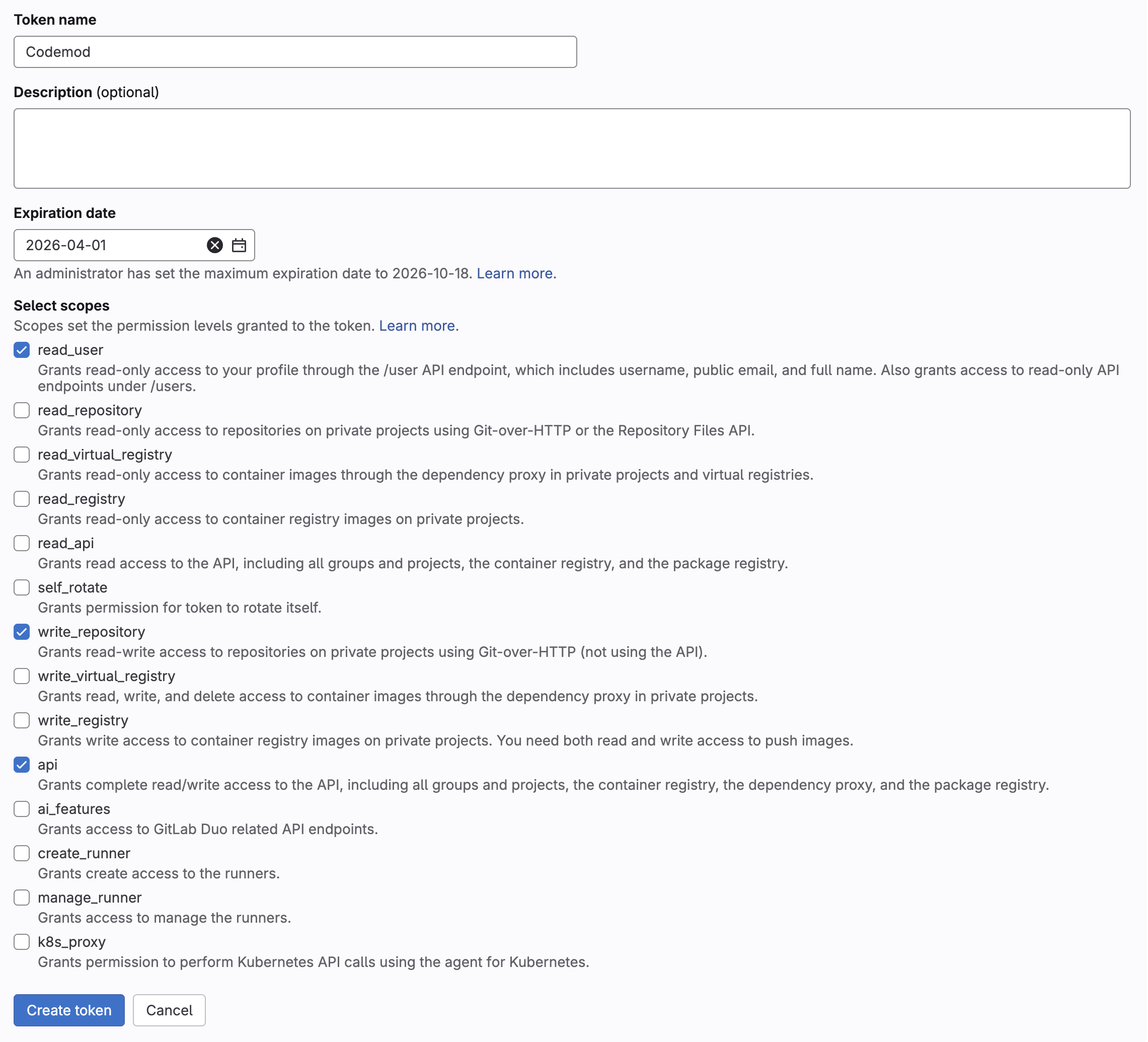
### Step 4: Configure Required Token Scopes
Your GitLab token must have the following scopes:
Allows reading user information and group memberships
Enables creating branches, commits, and merge requests
Provides full API access for repository operations
 ### Step 5: Complete Organization Setup
Back in Codemod, fill in the organization details:
1. **Organization Name**: Enter your organization's display name
2. **Organization Slug**: Choose a unique URL-friendly identifier
3. **GitLab Group Access Token**: Paste the token you created
### Step 5: Complete Organization Setup
Back in Codemod, fill in the organization details:
1. **Organization Name**: Enter your organization's display name
2. **Organization Slug**: Choose a unique URL-friendly identifier
3. **GitLab Group Access Token**: Paste the token you created
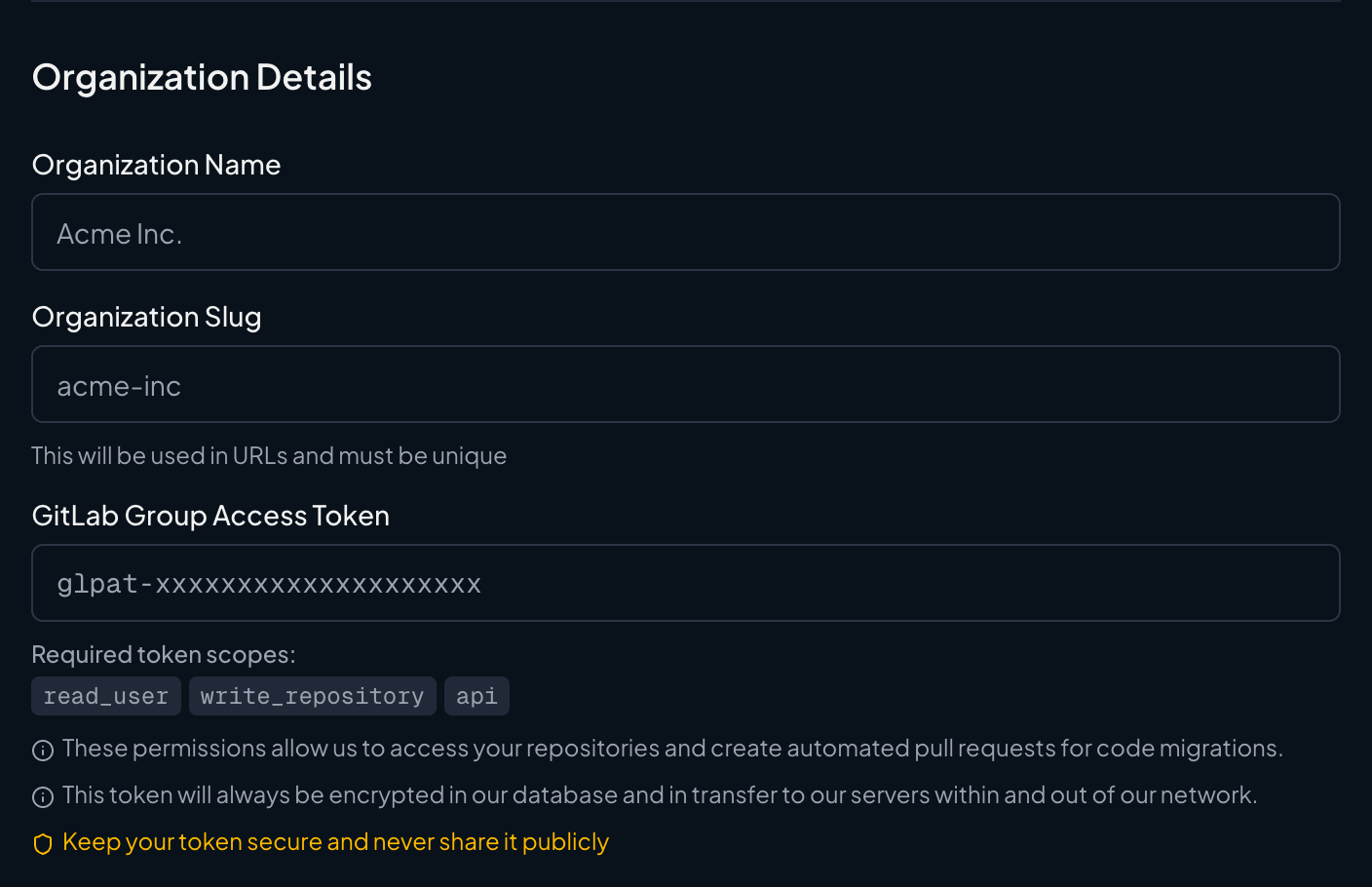
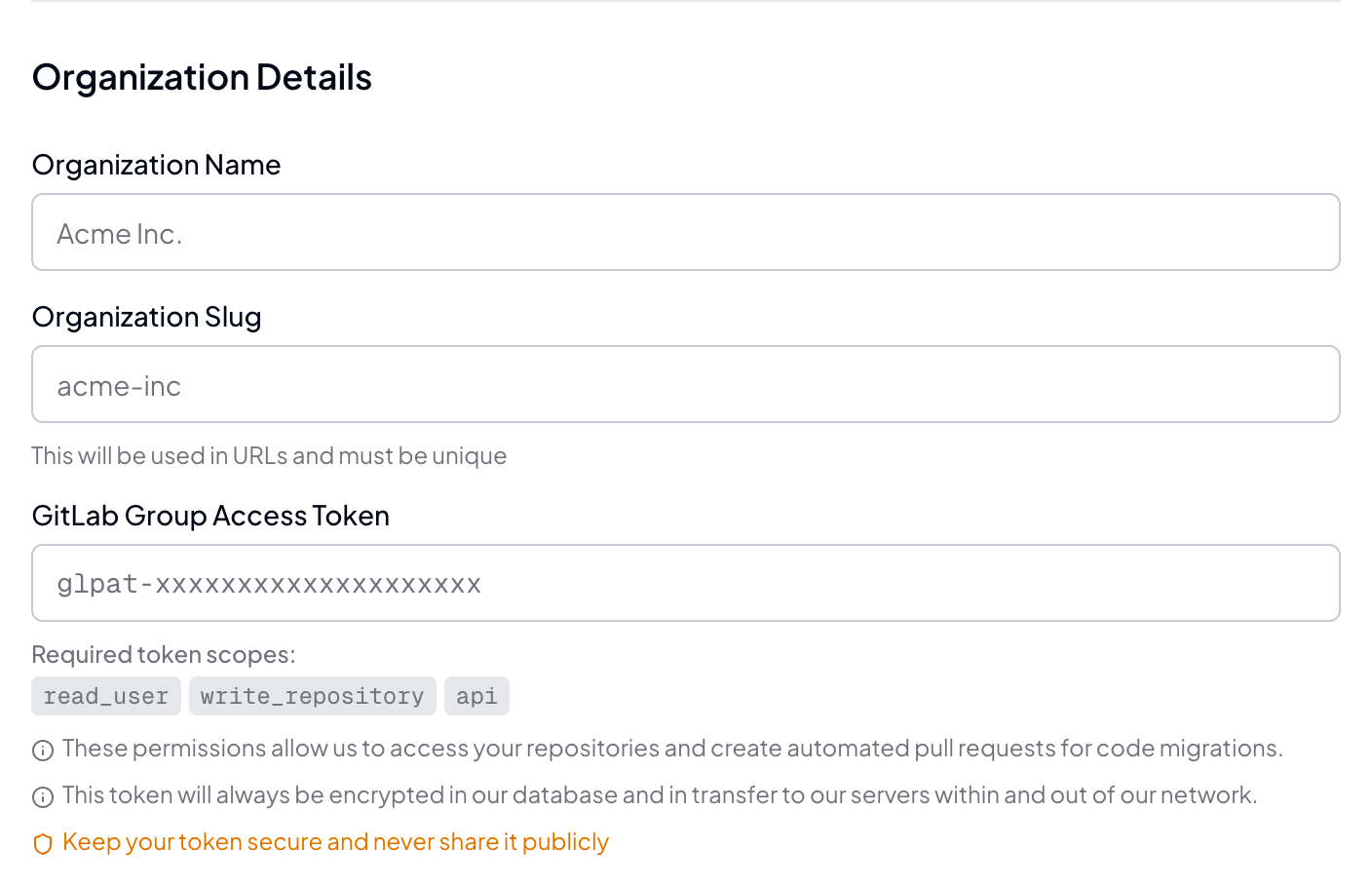 All tokens are encrypted both in our database and during transfer to ensure maximum security.
Click **"Create Organization"** to complete the setup.
## Using the GitLab Integration
Once connected, you can:
* Select connected repositories when running codemods
* Automatically create merge requests with your code transformations
* Configure which repositories to target for specific codemods
* Monitor the status of your automated code changes
## Managing Your Integration
### Updating Access Tokens
To update or rotate your GitLab access token:
1. Create a new token in GitLab following the same steps above
2. Go to Codemod **Settings** → **Integrations**
3. Click **Configure** next to the GitLab integration
4. Enter the new token and save
### Repository Access
The integration will have access to all repositories within the GitLab group where you created the access token. To modify access:
1. In GitLab, go to your group's **Settings** → **Access Tokens**
2. Find your Codemod token and click **Revoke** to remove access
3. Create a new token if you want to grant access to different repositories
## Security Considerations
Keep your GitLab access token secure and never share it publicly or commit it to version control.
* **Token Security**: All tokens are encrypted at rest and in transit using industry-standard encryption
* **Minimal Permissions**: Only grant the required scopes listed above
* **Regular Rotation**: Consider rotating tokens regularly for enhanced security
* **Review Access**: Regularly review which repositories have access in your GitLab group settings
* **Merge Request Review**: All code transformations are submitted as merge requests for your review before merging
### Branch Protection
We recommend enabling merge request approvals and branch protection on your main branches to ensure changes are reviewed before merging.
## Troubleshooting
* Verify your token has the correct scopes: `read_user`, `write_repository`, and `api`
* Check that the token hasn't expired
* Ensure you're using a group access token for the correct GitLab group
* Make sure the token wasn't revoked in GitLab
* Confirm the token belongs to a group that contains your repositories
* Check that the repositories exist and you have the necessary permissions
* Verify the group access token has sufficient permissions in the group settings
* Ensure the target branch exists and is not protected without proper permissions
* Check that the token has `write_repository` scope
* Verify there are no branch protection rules preventing the token from creating merge requests
## Managing the Integration
To disconnect or modify the GitLab integration:
1. Go to Codemod **Settings** → **Integrations**
2. Click **Configure** or **Disconnect** next to the GitLab integration
To revoke access from GitLab's side:
1. Go to your GitLab group's **Settings** → **Access Tokens**
2. Find the Codemod token and click **Revoke**
***
**Need help?** If you encounter any issues setting up the GitLab integration, please contact our support team or visit our documentation for additional troubleshooting steps.
All tokens are encrypted both in our database and during transfer to ensure maximum security.
Click **"Create Organization"** to complete the setup.
## Using the GitLab Integration
Once connected, you can:
* Select connected repositories when running codemods
* Automatically create merge requests with your code transformations
* Configure which repositories to target for specific codemods
* Monitor the status of your automated code changes
## Managing Your Integration
### Updating Access Tokens
To update or rotate your GitLab access token:
1. Create a new token in GitLab following the same steps above
2. Go to Codemod **Settings** → **Integrations**
3. Click **Configure** next to the GitLab integration
4. Enter the new token and save
### Repository Access
The integration will have access to all repositories within the GitLab group where you created the access token. To modify access:
1. In GitLab, go to your group's **Settings** → **Access Tokens**
2. Find your Codemod token and click **Revoke** to remove access
3. Create a new token if you want to grant access to different repositories
## Security Considerations
Keep your GitLab access token secure and never share it publicly or commit it to version control.
* **Token Security**: All tokens are encrypted at rest and in transit using industry-standard encryption
* **Minimal Permissions**: Only grant the required scopes listed above
* **Regular Rotation**: Consider rotating tokens regularly for enhanced security
* **Review Access**: Regularly review which repositories have access in your GitLab group settings
* **Merge Request Review**: All code transformations are submitted as merge requests for your review before merging
### Branch Protection
We recommend enabling merge request approvals and branch protection on your main branches to ensure changes are reviewed before merging.
## Troubleshooting
* Verify your token has the correct scopes: `read_user`, `write_repository`, and `api`
* Check that the token hasn't expired
* Ensure you're using a group access token for the correct GitLab group
* Make sure the token wasn't revoked in GitLab
* Confirm the token belongs to a group that contains your repositories
* Check that the repositories exist and you have the necessary permissions
* Verify the group access token has sufficient permissions in the group settings
* Ensure the target branch exists and is not protected without proper permissions
* Check that the token has `write_repository` scope
* Verify there are no branch protection rules preventing the token from creating merge requests
## Managing the Integration
To disconnect or modify the GitLab integration:
1. Go to Codemod **Settings** → **Integrations**
2. Click **Configure** or **Disconnect** next to the GitLab integration
To revoke access from GitLab's side:
1. Go to your GitLab group's **Settings** → **Access Tokens**
2. Find the Codemod token and click **Revoke**
***
**Need help?** If you encounter any issues setting up the GitLab integration, please contact our support team or visit our documentation for additional troubleshooting steps.